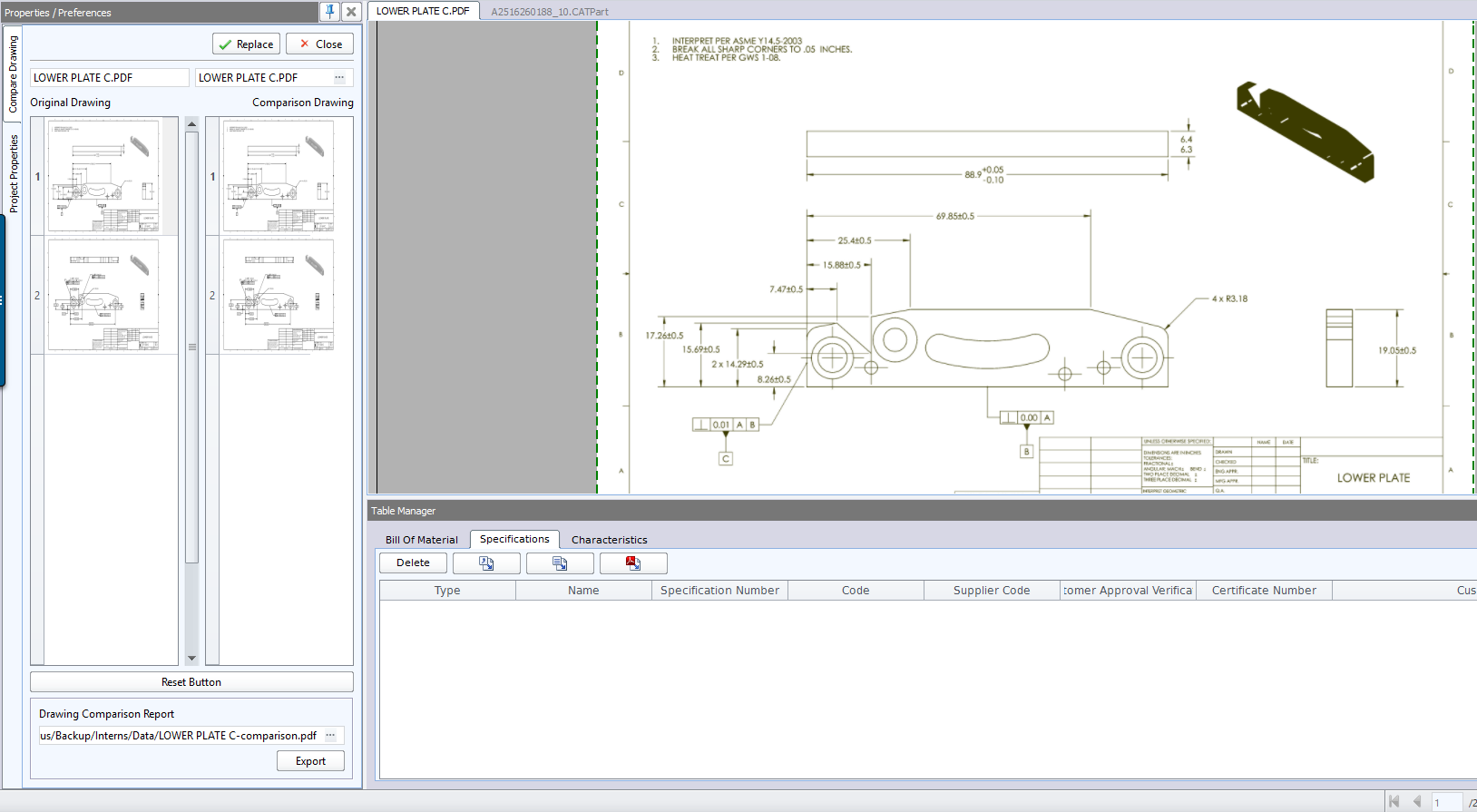
If two different sized PDF drawings are compared they will often not align correctly. To align correctly, you only need to set the bottom left and the top right of the drawing. If the points align incorrectly, you can click clear alignment, which clears all alignment settings.
To align a document:
1.Compare two drawings by clicking Compare (or Replace) on the Document tab.
2.Click Add Lower Left Alignment Point on the Document tab.
3.Follow the tool tip to select a point on the bottom left hand section of your new Compare drawing and then click on the corresponding point on your Original drawing.
4.Click Add Upper Right Alignment Point on the Documents tab.
5.Next, follow the tool tip select a point on the top right hand section of your drawing and then click on the corresponding point on your Original drawing. TIP: If the drawing does not align perfectly, you can click-on-drag the top right handle on a drawing to move it using the mouse.
6.To reset the comparison and start over, click 
NOTE: You can clear the Upper Right Alignment Point or Clear All Alignment Points if your drawings do not align correctly.